Smart Scan: physical reports to digital records
Scan a photo or PDF, check the transcription and send it for clinical review.
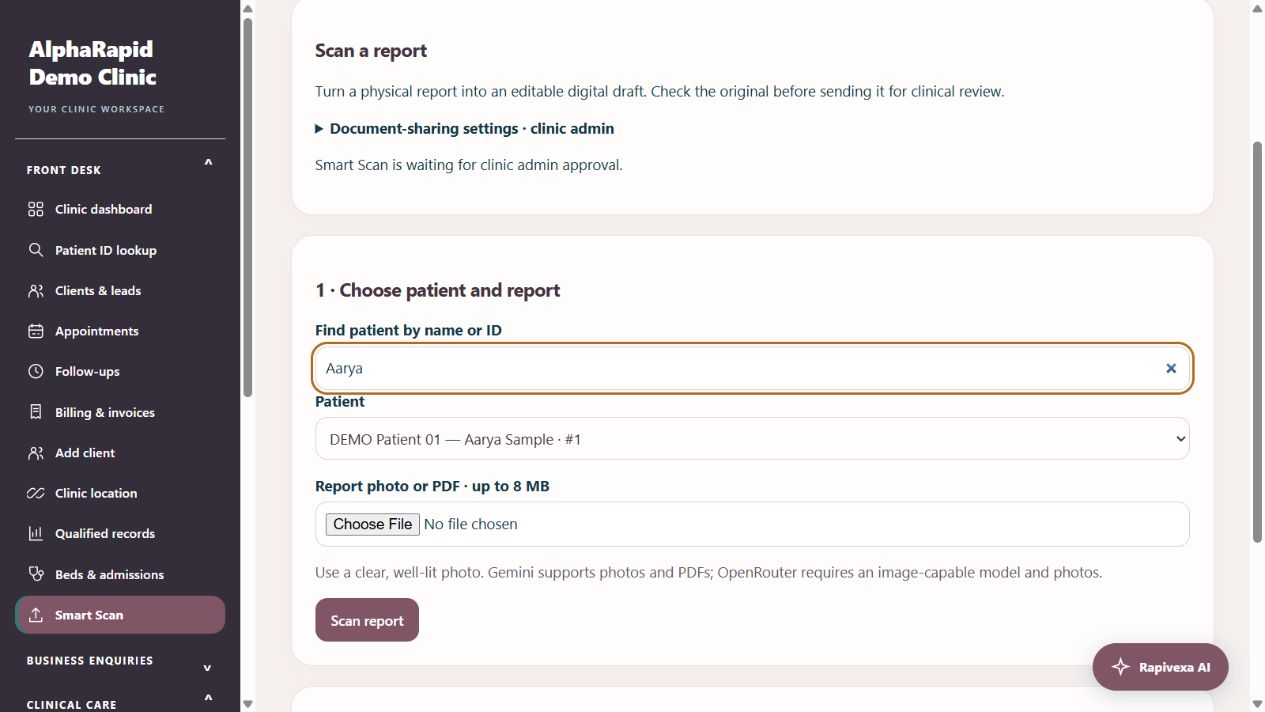
Step by step
- Billing admin: choose a supported image-capable model in AI settings and enable clinic AI. Smart Scan currently supports Gemini photos/PDFs and OpenRouter photos with image-capable models. It uses the selected model without switching providers.
- Clinic admin: open Front desk → Smart Scan → Document-sharing settings. Review the selected provider/model and document privacy terms, then approve document sharing once. Changing the provider/model requires new approval. Existing chat approval does not approve report image sharing.
- Front desk: search patient name or numeric ID, select the matching patient, then choose a clear JPG/PNG or PDF up to 8 MB. Click Scan report.
- Open the original report alongside the editable draft. Check patient identity, every date, value, unit and reference range. Unreadable portions must be checked manually; the scan does not diagnose or prescribe.
- Edit title and text, confirm you checked the original, then Send for clinical review. This creates an encrypted draft, not a final clinical record.
- Clinician or clinic admin: open Review queue for the correct location, choose Review draft, check the patient and original, edit the transcription, then Confirm & save to patient history. The original attachment is retained with the digital text.
Keep in mind
Receptionists see their own scan drafts and cannot finalize medical records. Clinicians see only their permitted clinic location. Scan extraction requires approved external document sharing.
Real-provider OCR accuracy still requires testing with your chosen vision model. Free models may have limits or unsupported image inputs; a text-only model cannot scan images.
Up to 50 pending drafts can be queued. Review them before adding more. No patient document was sent externally during local regression tests.
Related guides
Manage medical documents and lab reports
Attach records to the correct patient and review uploaded results.
Read guide →Patients & careReview a patient profile and history
Use the patient record to follow previous care.
Read guide →Clinic & teamEnable AI: clinic settings & record-sharing approval
A clinic-admin setup guide with the exact switches and save buttons.
Read guide →Patients & careAdd visual charts to a prescription
Select a location chart, mark findings and choose whether to print it.
Read guide →Still need help?
Send your clinic code and the exact issue. Keep passwords and patient information private.
Request setup help · Free All guides