Record vitals before consultation
Front-desk readings appear in the doctor’s prescription draft.
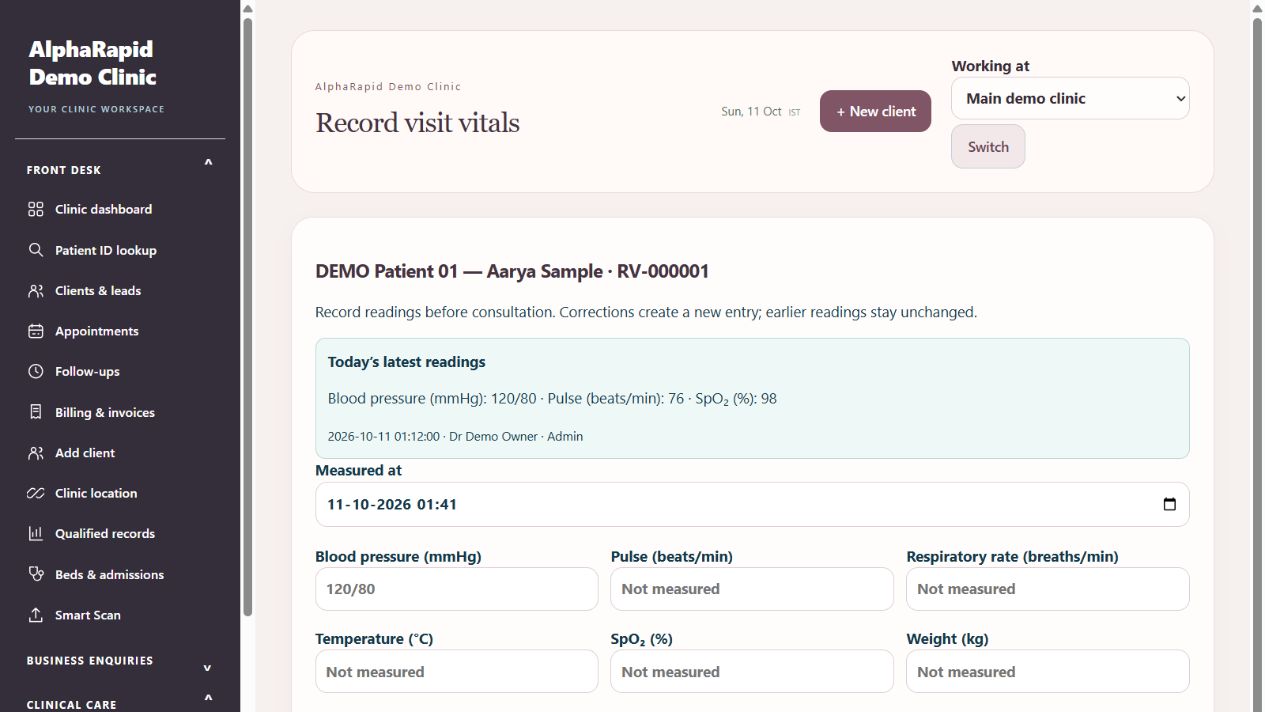
Step by step
- Open Front desk → Appointments for today. Active visit cards show Vitals pending or Vitals recorded, with a Record vitals / View readings link. Cancelled, no-show and future appointments do not prompt vitals entry.
- Alternatively open Patient ID lookup or the patient profile and select Record vitals. Check the patient and clinic location before entering readings.
- Enter measurement time and only the readings actually taken. Units appear beside each field. Blank means not measured; there is no automatic normal-value fill. Save vitals. A correction creates a separate new entry.
- The prescribing doctor opens the patient’s new prescription. Today’s readings appear with the measurement time and recorder. Refresh readings retrieves the latest readings without reloading the draft; replacing existing draft readings requires confirmation.
- Only readings for the selected consultation date can be linked to a saved prescription. Changing that date clears the draft’s previous readings. The saved prescription retains the recorder and notes clinician edits.
Keep in mind
Reception can record measurements without gaining access to prescriptions or medical documents. This is manual documentation, not medical-device monitoring.
Related guides
Patients & care
Prescription writing: complete OPD and revisit guide
A practical guide for reception and doctors: record vitals, write a fast mobile prescription, reuse personal templates, review medicine changes, recover drafts and print.
Read guide →Appointments & follow-upsBook and manage an appointment
Check patient, clinician, location and time before saving.
Read guide →Patients & careReview a patient profile and history
Use the patient record to follow previous care.
Read guide →Still need help?
Send your clinic code and the exact issue. Keep passwords and patient information private.
Request setup help · Free All guides