Change a staff password or update access
Keep staff credentials and location assignments current.
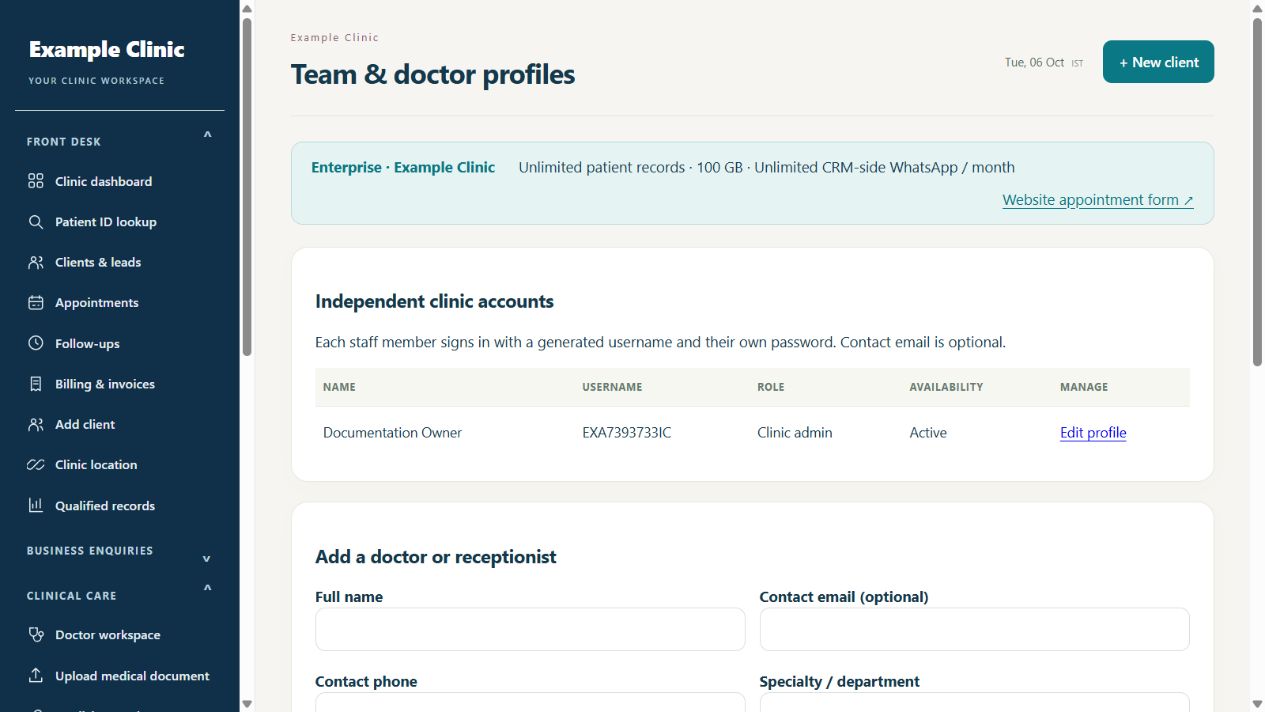
Step by step
- As clinic admin, open Team profiles and locate the correct generated username.
- Update the profile or permitted locations as required.
- To change the password, fill New password with a unique password of at least 14 characters; otherwise leave it blank.
- Save the profile and ask the staff member to sign in again when access or credentials have changed.
- For a clinic admin or client-area password you cannot recover, contact AlphaRapid support through Contact Us.
Keep in mind
Never send passwords, encryption keys or authentication cookies to support. For staff who leave, have their access disabled through the available account controls or request assistance.
Related guides
Clinic & team
Add doctors and receptionists
Give every team member their own clinic access.
Read guide →Troubleshooting & safetyTroubleshoot a failed login or missing CRM dashboard
Check credentials and the page before requesting help.
Read guide →Still need help?
Send your clinic code and the exact issue. Keep passwords and patient information private.
Request setup help · Free All guides