Connect WhatsApp and check message delivery
Provider setup and delivery status matter.
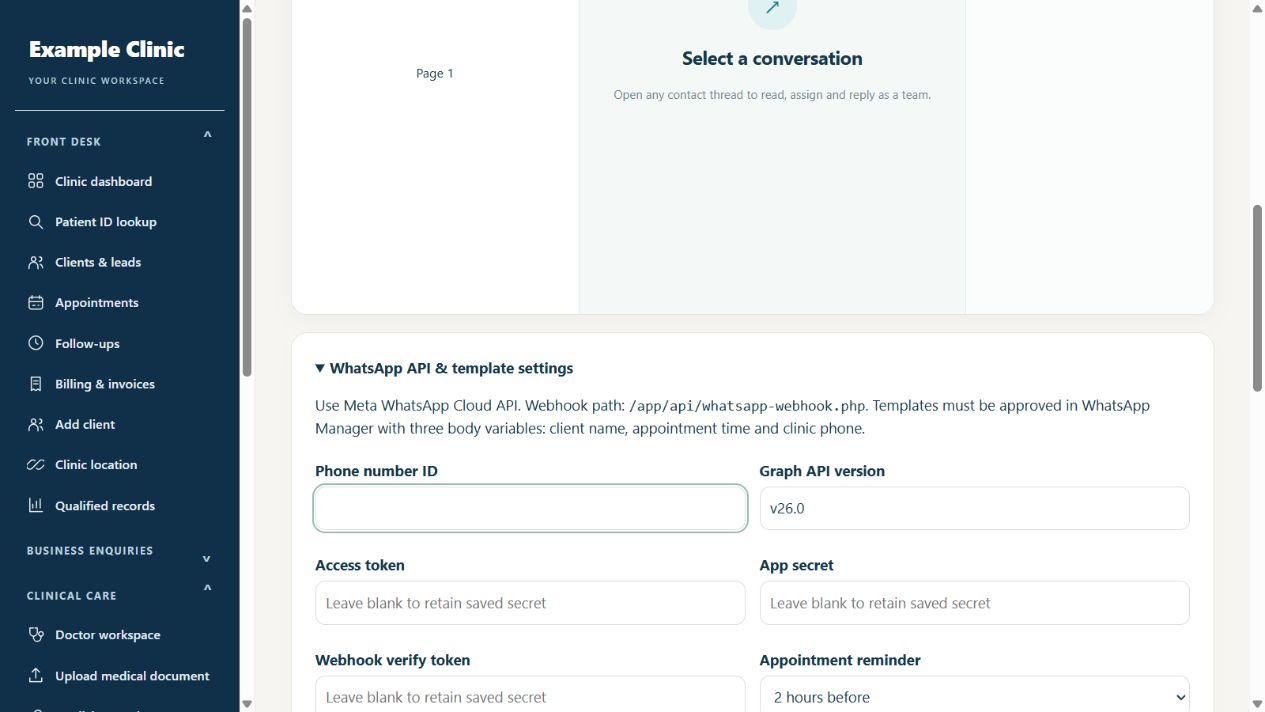
Step by step
- Confirm that your clinic plan includes the needed WhatsApp workflow.
- Have an authorized admin configure the provider connection in the available integration settings.
- Verify sender details, patient phone format and any required provider templates or permissions.
- Appointment message templates use automatically filled client name, appointment date/time and clinic phone variables. For post-visit recall, an Admin selects Off, 7 days or 15 days in Clinic → Settings → Follow-up rules; a WhatsApp reminder is only queued when the client consented, has not opted out, an approved Recall template is active and sending is enabled. The Recall template receives client name, follow-up date and clinic phone.
- Send a test to an authorized internal recipient and inspect the message status.
- If a real message fails, check the displayed error and provider status before retrying.
Keep in mind
Provider fees, approval and delivery are separate from the CRM subscription. CRM quotas do not guarantee provider delivery. Only contact patients using consent and communication preferences appropriate to your practice.
Related guides
Messaging & integrations
Run a marketing campaign responsibly
Check eligibility, audience and results before sending.
Read guide →Troubleshooting & safetyUnderstand plan limits and upgrade requests
Know why a quota or feature warning appears.
Read guide →Troubleshooting & safetyContact AlphaRapid support with useful details
Help the team reproduce the issue without exposing private information.
Read guide →Still need help?
Send your clinic code and the exact issue. Keep passwords and patient information private.
Request setup help · Free All guides