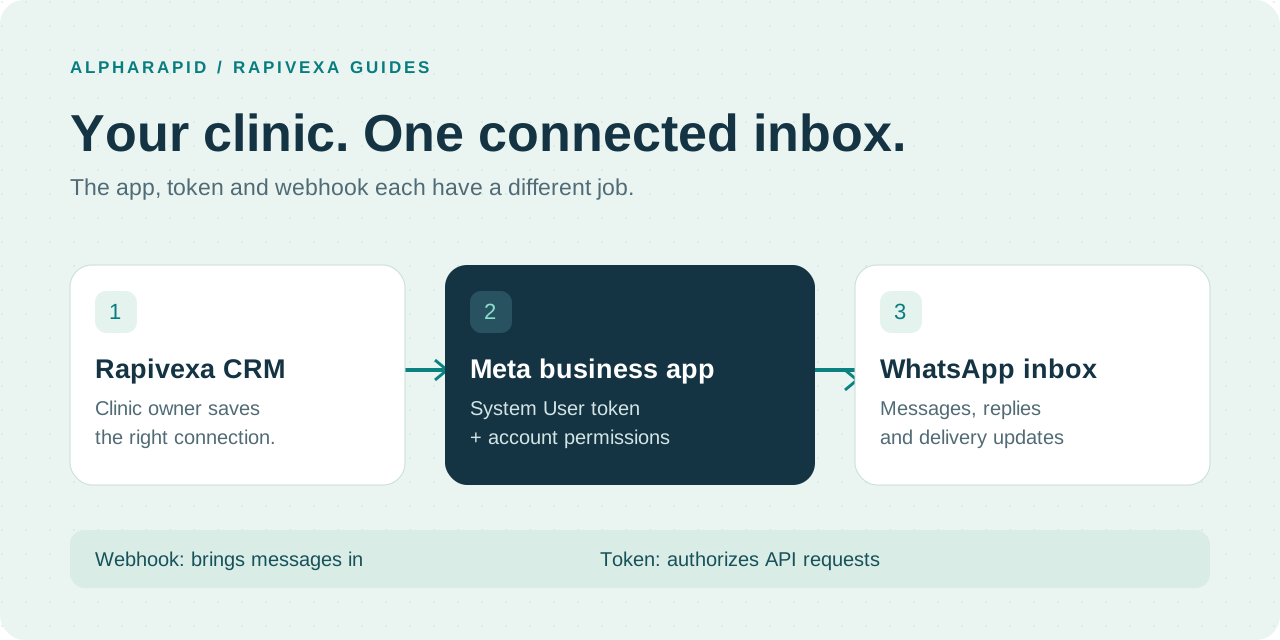
Connect one clinic first, check a real incoming message and reply, then enable the automation you need. This guide follows the “Use my own Meta app” connection in Rapivexa. It also explains when AlphaRapid’s guided connection is a different choice.
18 Meta setup screenshots + 4 sample CRM screenshots. Open any image to enlarge it. Private account details are hidden.
1. Choose the right connection
For your own clinic or demo number, use your own Meta app and a System User access token. You do not need to become a Tech Provider just to connect a WhatsApp Business account that your business owns. Creating another app does not extend a token’s lifetime.
“Connect through AlphaRapid” is the separate guided signup route for participating clinics. It works when AlphaRapid’s platform configuration, permissions and Meta onboarding are ready. Publishing an app alone does not establish all of that access. A clinic uses one active connection method at a time; its existing inbox remains in the CRM.
| Your goal | Use this route | Who prepares Meta? |
|---|---|---|
| Connect your own clinic or demo number | Use my own Meta app | Your business administrator |
| Connect through an available AlphaRapid signup flow | Connect through AlphaRapid | AlphaRapid prepares the platform; the clinic authorizes its own business |
| Build a platform that connects other businesses | Tech Provider / Embedded Signup onboarding | The platform owner completes the required Meta reviews |
2. Collect the right account details
Sign in as a person allowed to manage the clinic’s Meta business portfolio, app and WhatsApp Business Account. Use the business that owns the number. Check the country code and which number you are connecting before changing any settings.
A number already used in the WhatsApp Business mobile app may need an eligible Coexistence or migration flow. Do not delete the mobile account as a general troubleshooting step; confirm the supported path for that number first.
| Field | Where it comes from | What it means |
|---|---|---|
| Phone number ID | Your app’s WhatsApp API Setup / WhatsApp Manager | The API identifier of the phone, not the phone number you dial |
| WhatsApp Business Account ID (WABA ID) | API Setup / Business Settings → Messaging accounts | The account containing the clinic number; not the business portfolio ID |
| Access token | Business Settings → Users → System users | Authorizes API operations; use a token for the same app and account |
| App secret | Meta app → App settings → Basic | Verifies webhook signatures; keep it private |
| Webhook verify token | A private value chosen by your administrator | Enter the exact same value in Rapivexa and Meta |
| Graph API version | The version supported by the current app and CRM | Use a supported version; a version change does not renew a token |
- A public HTTPS CRM address and an active clinic-owner login.
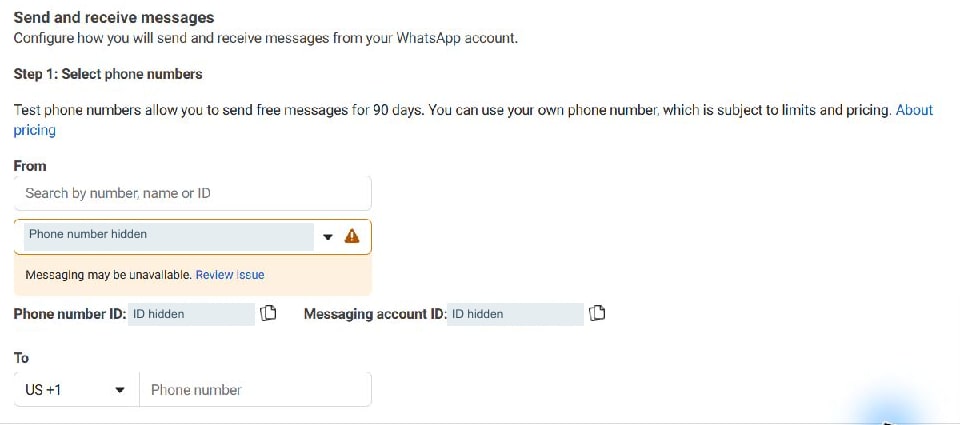
- The correct app, phone ID and WABA ID from the same intended connection.
- A private place to store the new token; never paste it into a support chat or public screenshot.
3. Prepare the clinic’s Meta app
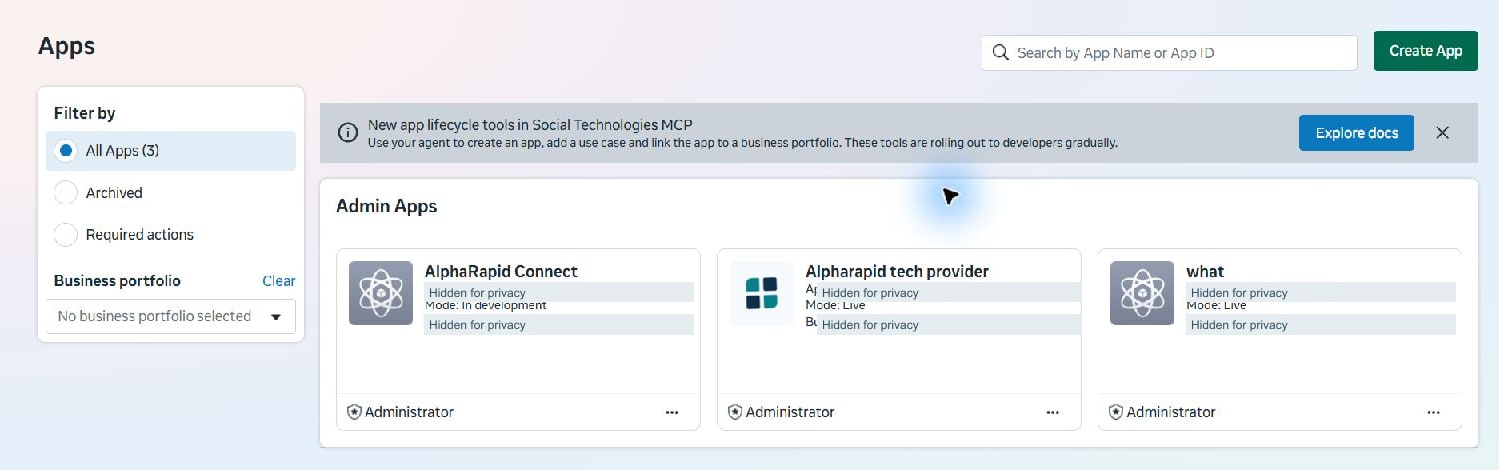
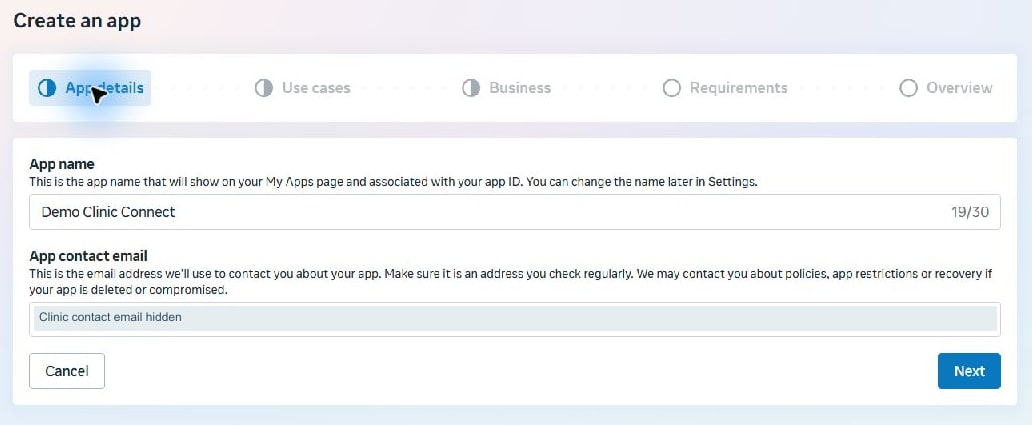
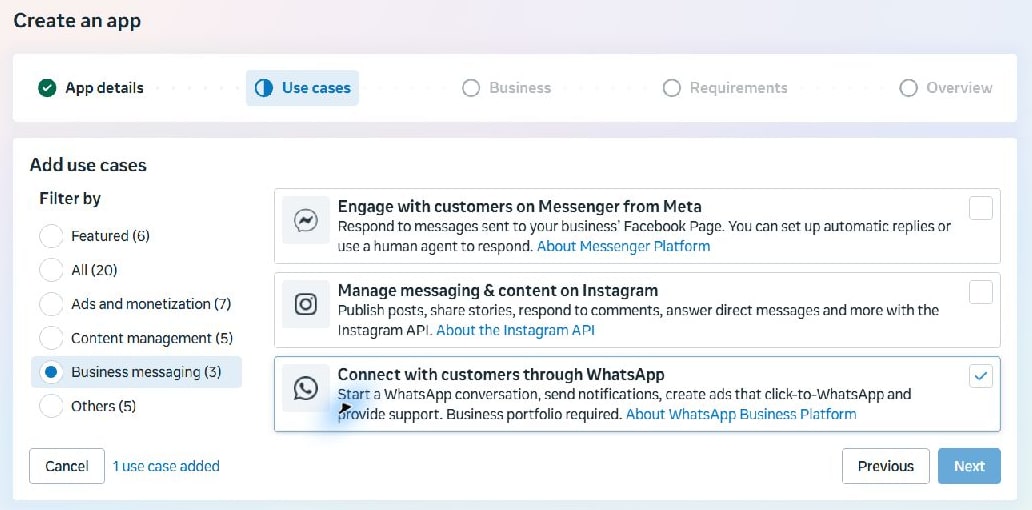
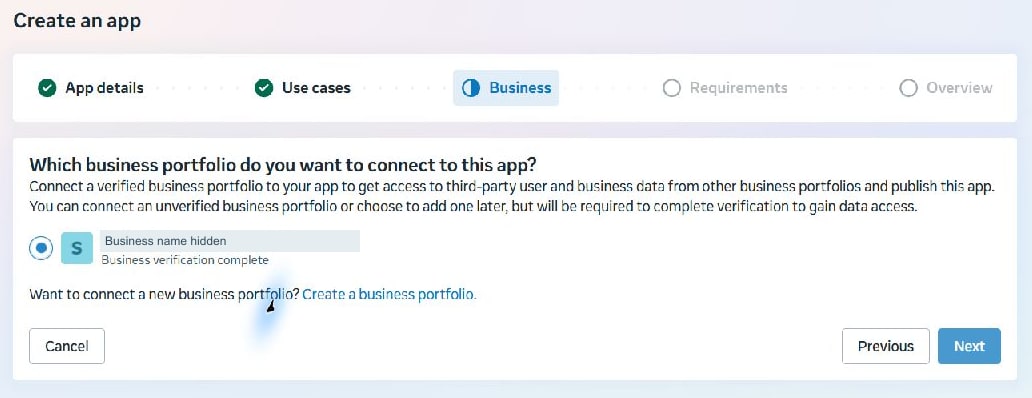
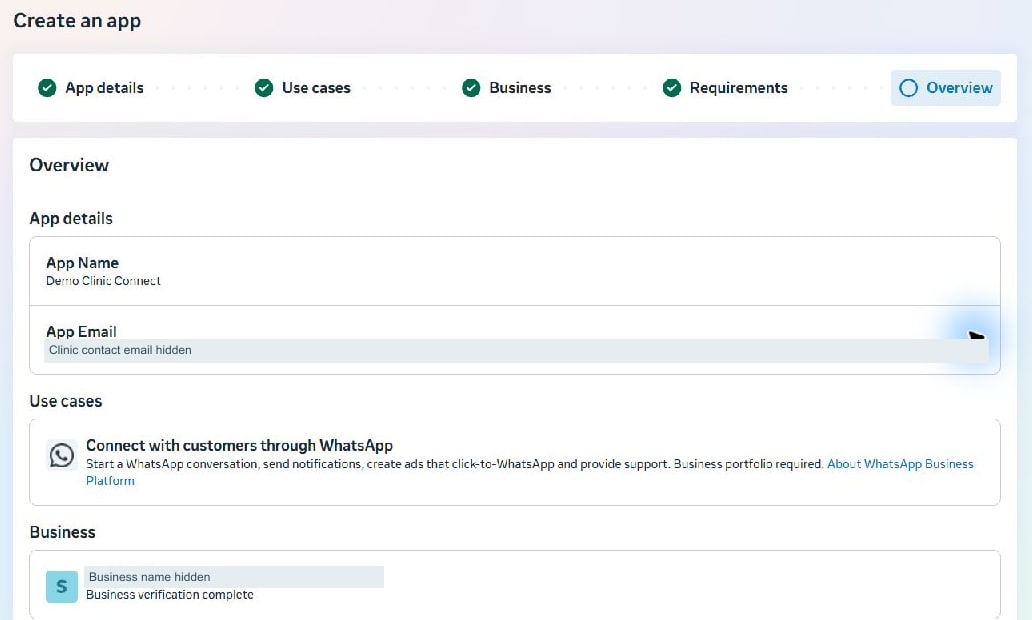
If your app already sends messages for the correct number, keep it. Rebuilding the app is not a token-expiry fix. For a new direct connection, open Meta for Developers → My Apps → Create App, enter your app name and contact email, choose “Connect with customers through WhatsApp”, and select the clinic’s business portfolio.
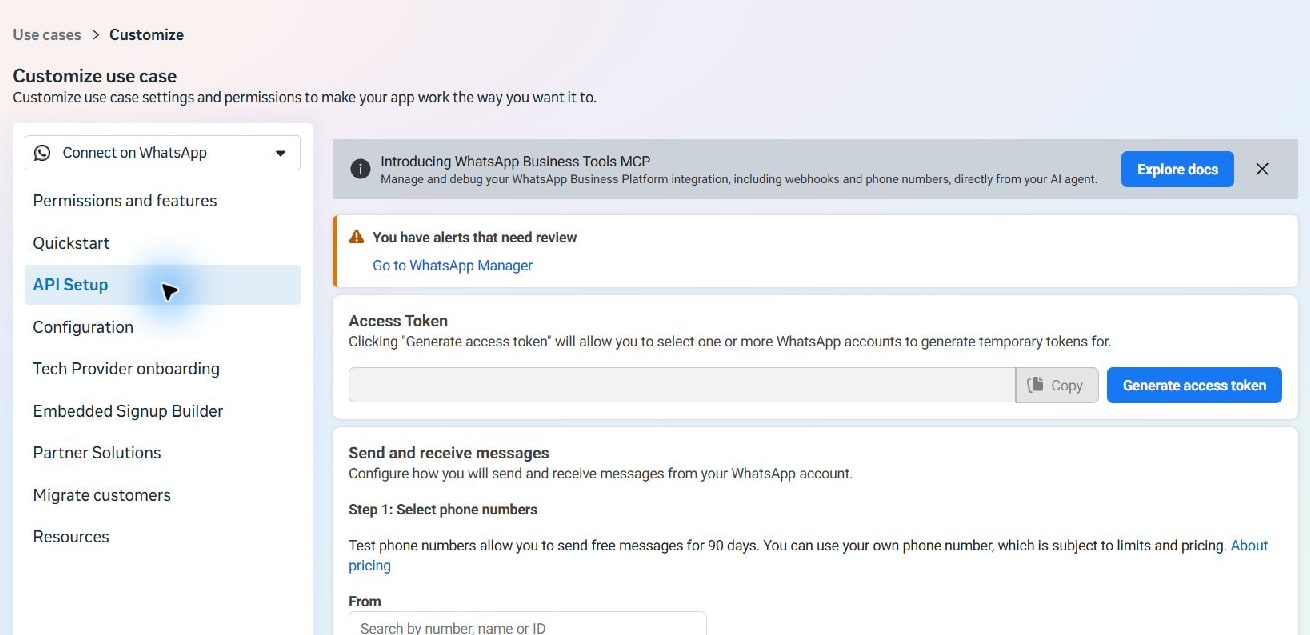
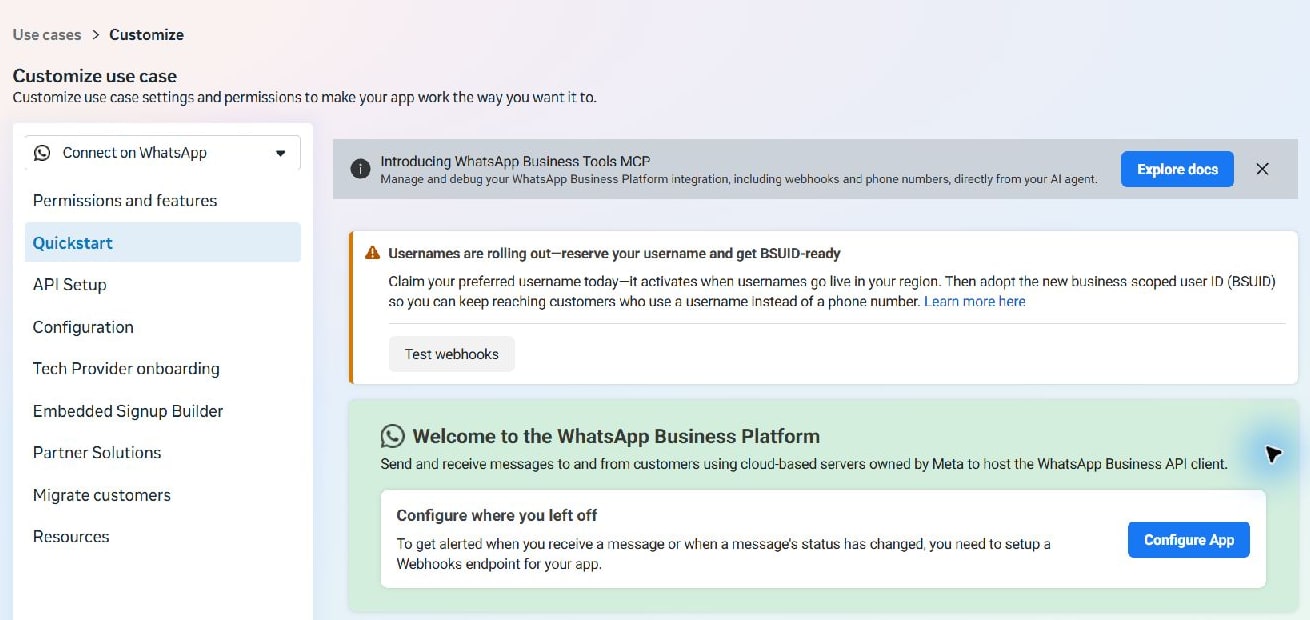
Open the app’s WhatsApp use case / API Setup and select the intended account and phone. Record their IDs privately. Complete the app settings and publishing requirements Meta shows. Development mode, test recipients, app roles and advanced-access rules can affect who can use the connection; follow the requirements for your actual app.
For an own-business connection, continue with that app’s API setup. Do not select “I’m a Tech Provider” simply because an error 190 appears. The Tech Provider declaration concerns serving other businesses and is a separate decision.
- Open My Apps → Create App. Use an app name based on your clinic or business, for example Demo Clinic Connect, and a contact email you monitor. Meta can reject names containing its trademarks, including WhatsApp.
- Choose Business messaging → Connect with customers through WhatsApp, then Next.
- Select the business portfolio that owns this clinic and number. Read the requirements Meta shows for that selection.
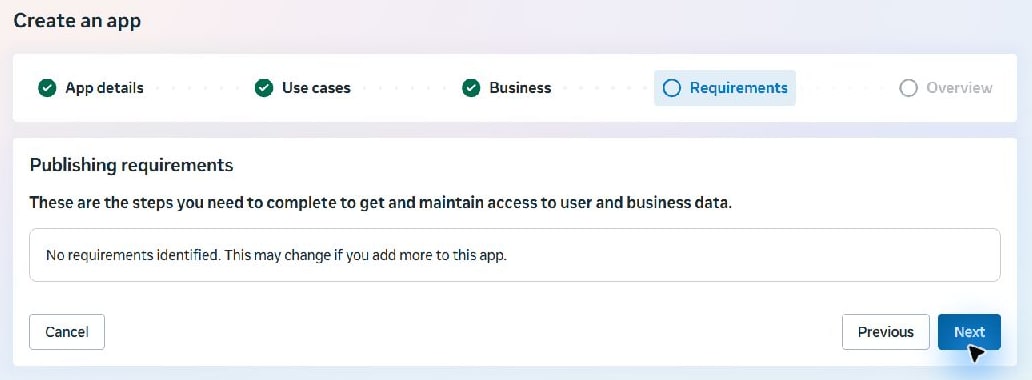
- Review the Overview, then choose Create app at the bottom only when you are ready to create the actual app. Complete any authentication privately. The example creation flow in the screenshots was cancelled before this final submission.
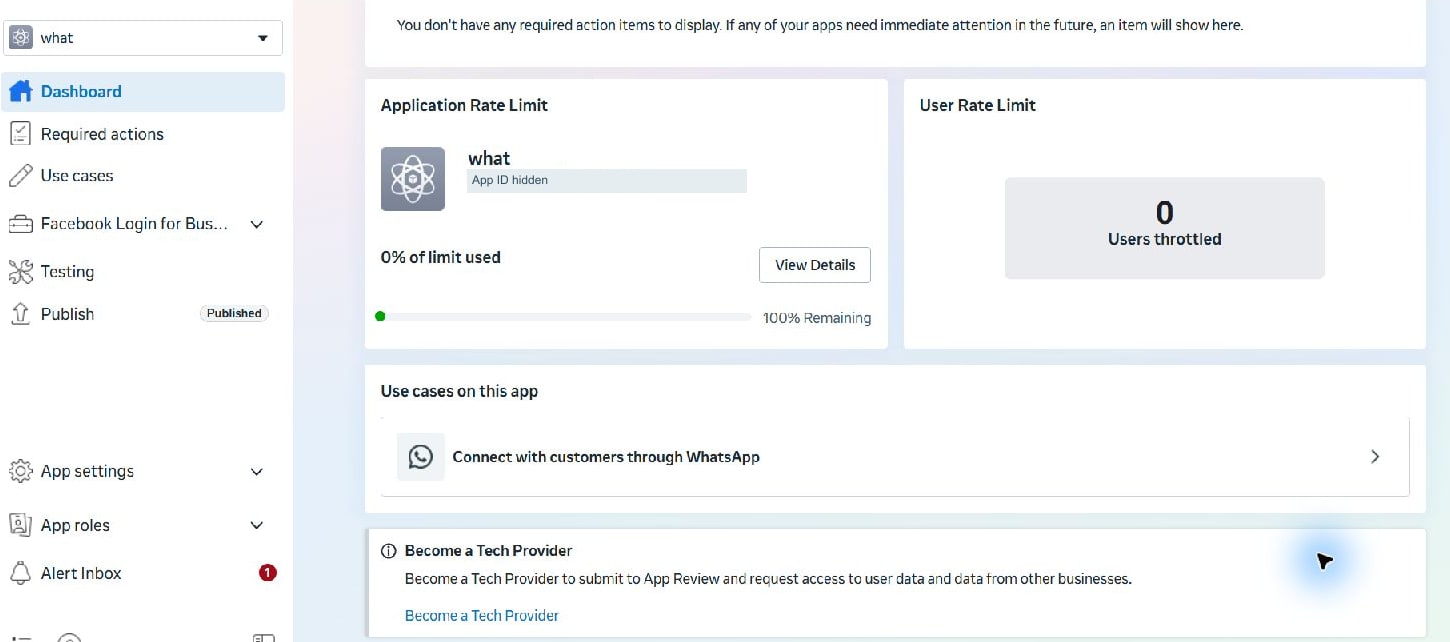
- In the app dashboard, open the WhatsApp use case. Use API Setup for the number/account IDs and Configuration for the webhook. The later navigation screenshots use an existing app, not a newly created demo app.
4. Fix the access-token problem with a System User token
A token copied from Graph API Explorer or a test setup can be temporary. It does not automatically update the token saved in Rapivexa. Two tokens can share a long-looking prefix and still be different. Check their actual validity, app and expiry instead of judging by their appearance.
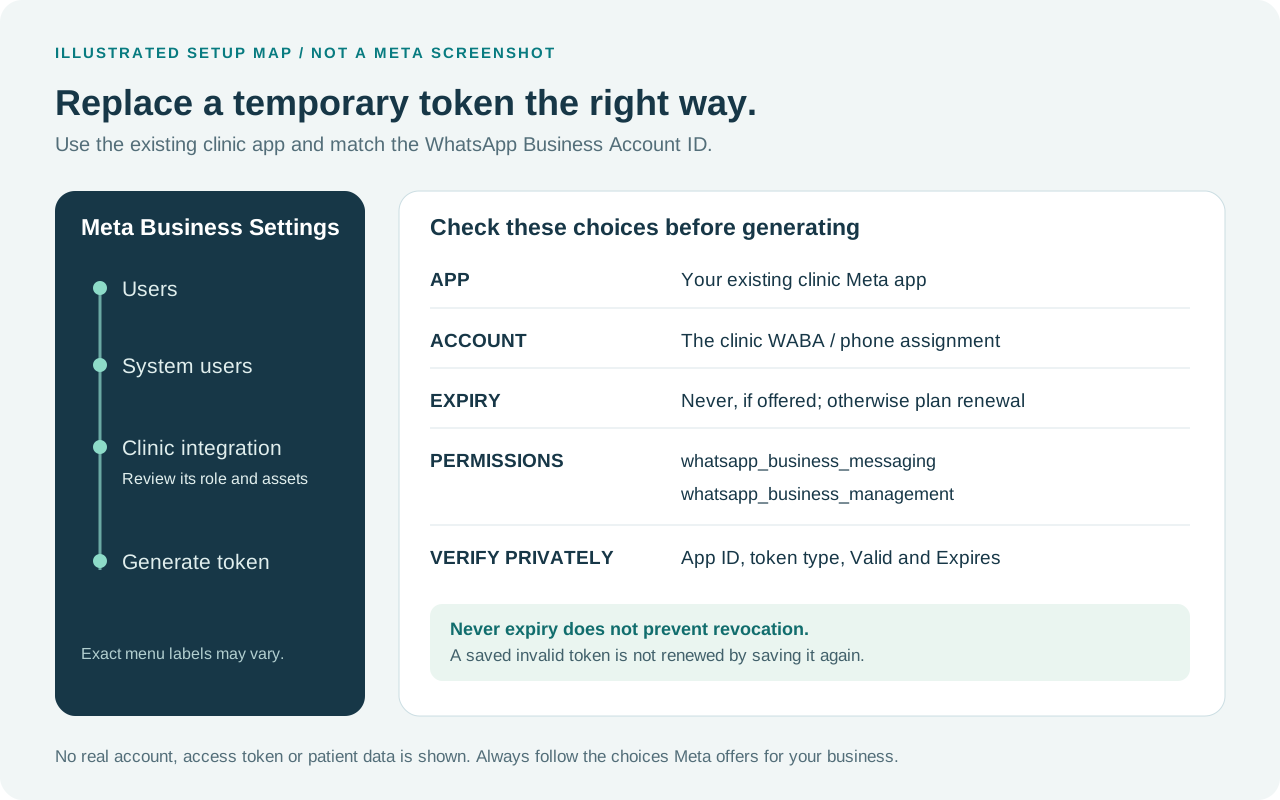
Open Meta Business Settings → Users → System users. Prefer a dedicated clinic-integration user. If you reuse an existing user, inspect its role and assigned assets first, and preserve unrelated integrations. Creating a new System User is not compulsory if a suitable one already exists.
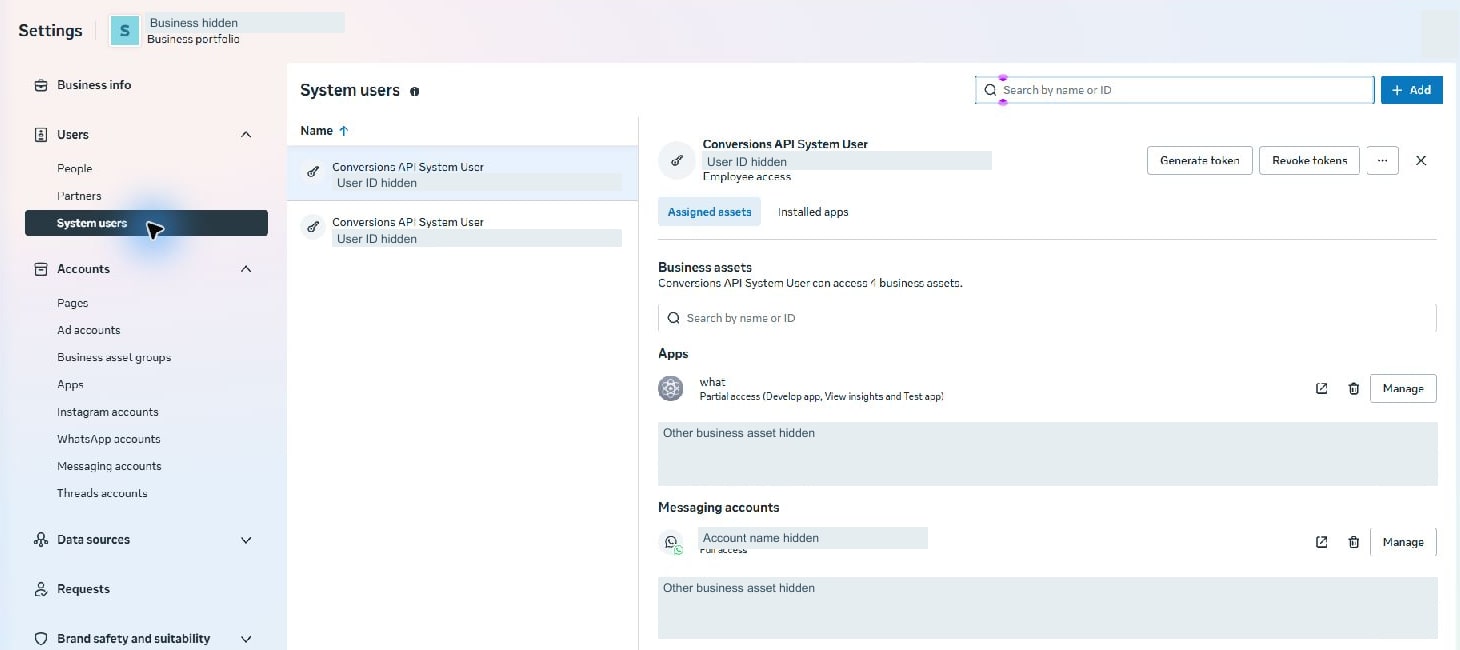
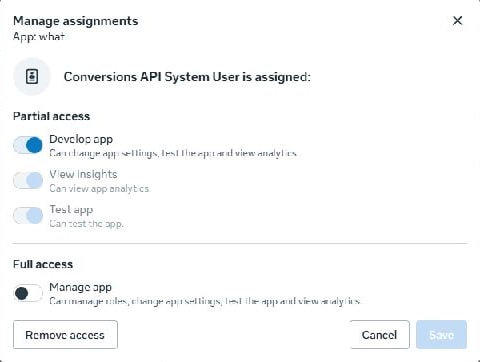
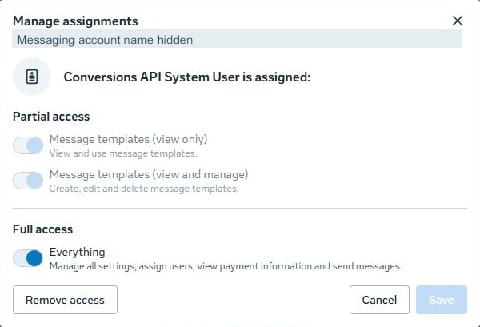
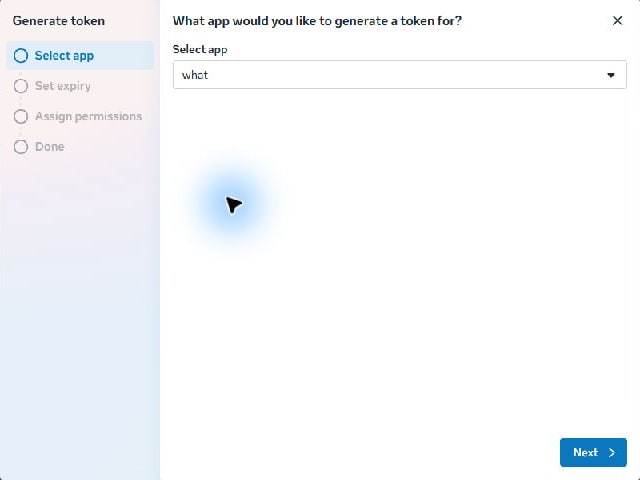
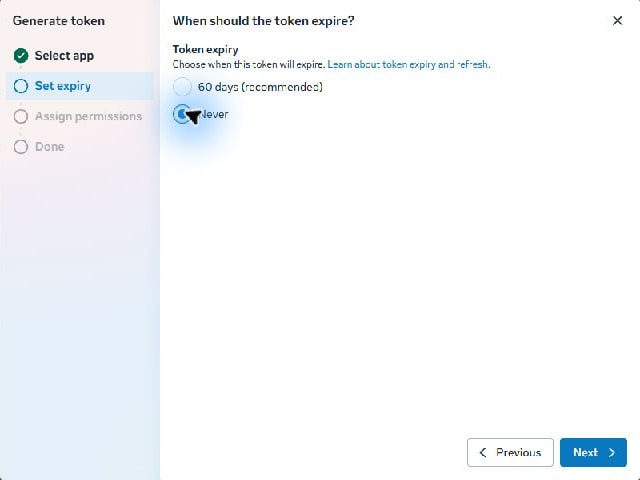
- Select the business portfolio that owns the existing clinic app and WABA. Create an appropriately named integration user if needed, or choose an authorized existing System User.
- Assign the intended app and the clinic’s actual API messaging account. Meta may label the account list “Messaging accounts → Linked accounts” rather than “WhatsApp accounts”. Match the WABA ID, not only its display name.
- Give the app the required app role. In the current interface, Develop app includes testing and insights. Inspect account permissions carefully: where message sending is bundled under “Everything”, that account scope also includes settings, user assignment and access to payment information. Obtain the business owner’s approval for that scope; do not select every business asset.
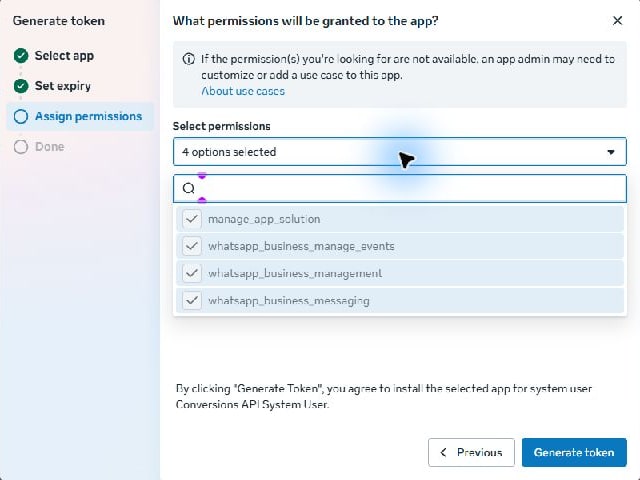
- Open Generate token. Choose the existing clinic app—not an unrelated advertising or platform app. If the expiry selector offers Never, select it for this authorized server integration; otherwise use the available expiry and plan renewal before it ends.
- Select whatsapp_business_messaging and whatsapp_business_management for this WhatsApp integration. Do not add unrelated advertising or business permissions merely to silence an error. Generate the token privately and store it securely.
- Check it in Meta’s Access Token Debugger: the App ID must match, Type should identify the System User connection, Valid must be true, the expiry must match your choice, and the required scopes/assets must be present. Follow the actual returned values rather than assuming generation succeeded.
5. Save the connection in Rapivexa
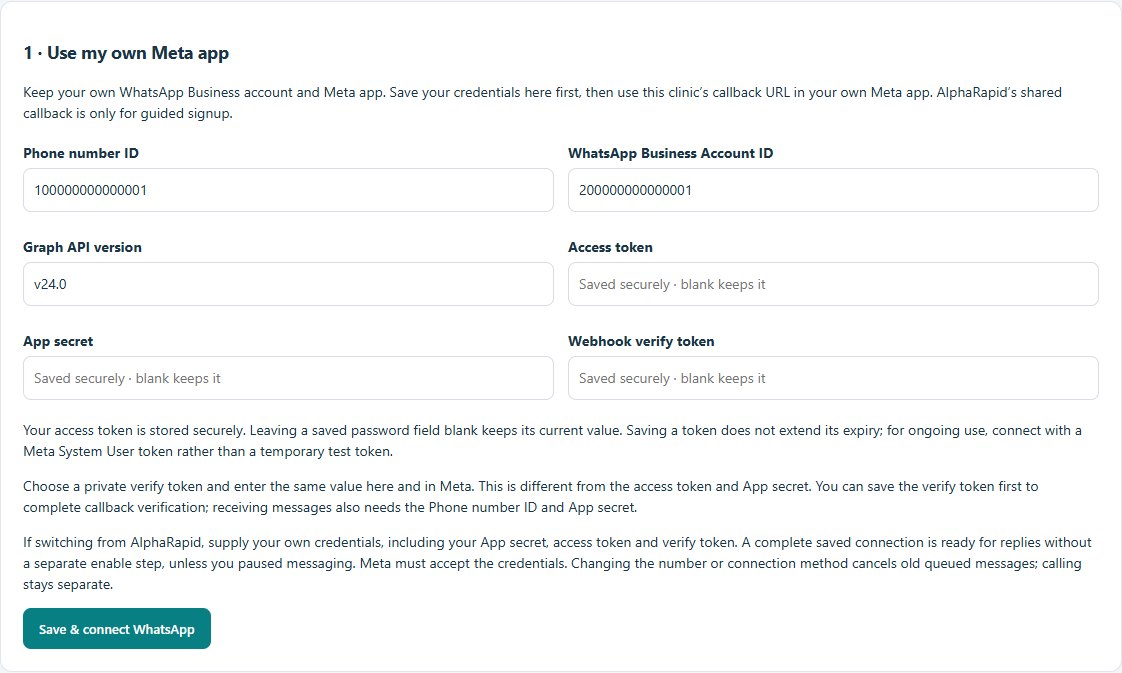
Log in as the clinic owner. Open Settings → WhatsApp settings, or open WhatsApp inbox and use its settings link. Find “1 · Use my own Meta app”. Staff may not have permission to edit or reveal connection credentials.
- Enter the correct Phone number ID, WABA ID and supported Graph API version. Paste the new System User token into Access token and enter the matching app’s App secret.
- Choose a private Webhook verify token and save it here. Keep it separate from the Access token and App secret; you will use the same verify value in Meta’s callback verification.
- Choose Save & connect WhatsApp. Saved password fields appear blank intentionally; “Saved securely · blank keeps it” means an empty field retains the existing secret.
- Use Check saved connection. This checks the saved credentials without sending a message. An accepted read check is useful, but it does not itself prove that sending, incoming webhooks or template approval work.
- If messaging was deliberately paused, unpause it in Messages, calling & automatic templates. A complete connection normally readies staff replies without another enable step. AI replies and calling have separate setup.
6. Where to paste the webhook URL in Meta
Copy from Rapivexa → paste into Meta
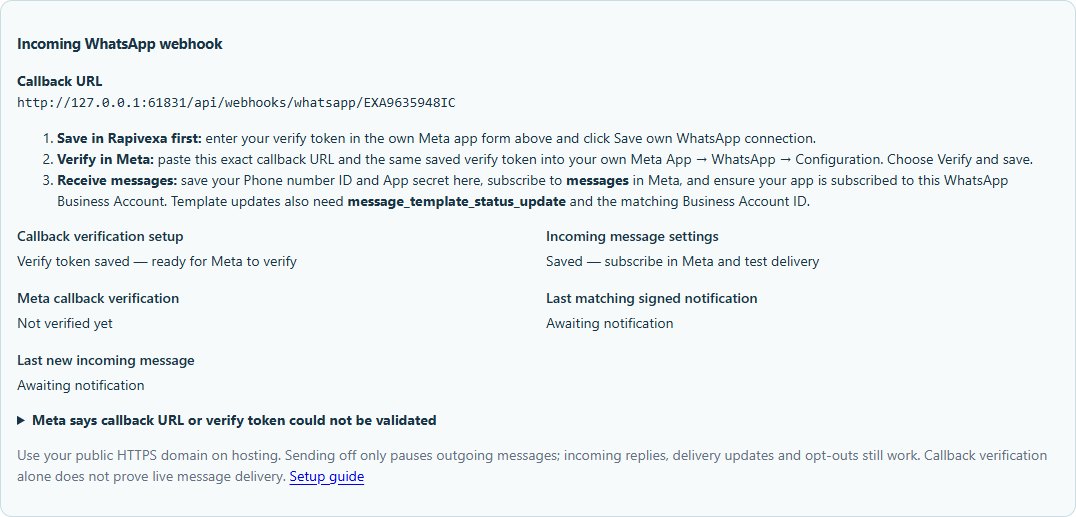
1 · Copy the clinic callback
Open: Rapivexa → Settings → WhatsApp settings → Use my own Meta app → Incoming WhatsApp webhook
Copy the Callback URL shown for this clinic. Do not copy the browser address of WhatsApp settings.
2 · Paste into Callback URL
Open: Meta for Developers → My Apps → the same clinic app → Use cases → Connect with customers through WhatsApp → Configuration
Paste the copied clinic URL into the field labelled Callback URL. The screenshot below shows this exact field.
3 · Match the Verify token
Open: The Verify token field directly below Callback URL in Meta
Enter the same private Webhook verify token saved in Rapivexa, then choose Verify and save. This is not your access token or App secret.
4 · Subscribe to messages
Open: On that same Meta Configuration page → Webhook fields
Turn on messages. Use message_template_status_update for template-status updates. Then check the intended WABA app subscription separately.
In Rapivexa’s Incoming WhatsApp webhook section, copy the callback URL displayed for this clinic. For the own-app route it has the shape https://YOUR-CRM-DOMAIN/api/webhooks/whatsapp/YOUR-CLINIC-CODE. Use the displayed URL, not this example and not AlphaRapid’s shared guided-signup callback.
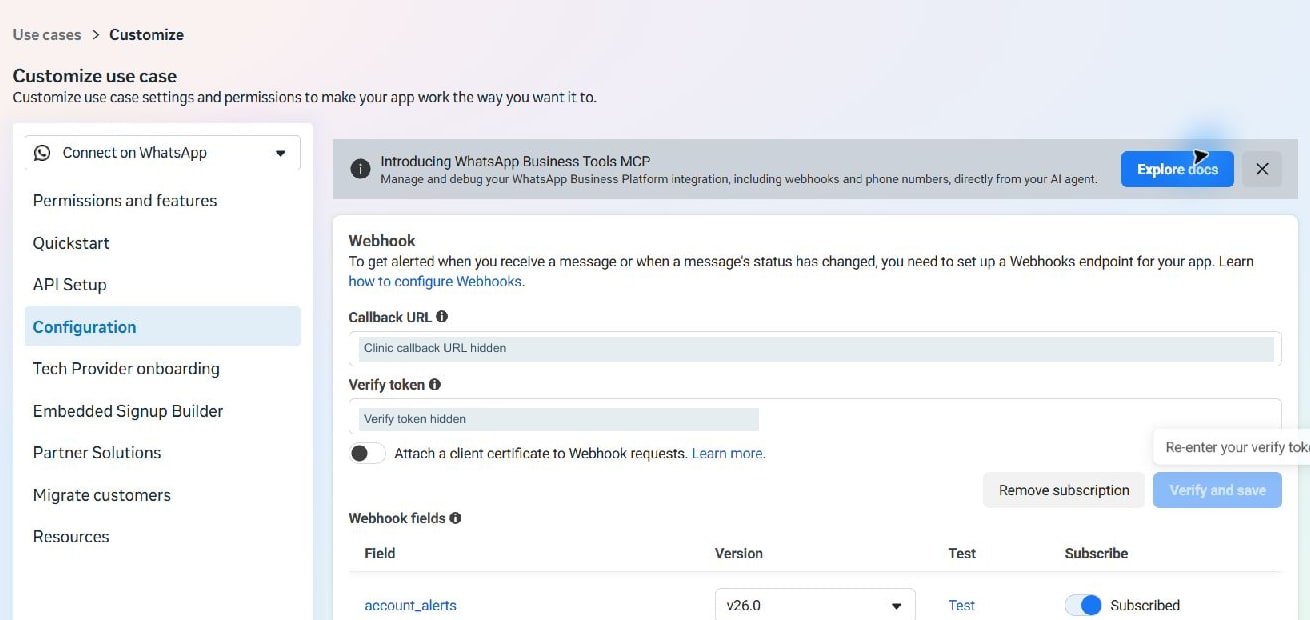

- In the same Meta app, open the WhatsApp use case → Configuration / Webhooks. Paste the clinic callback URL and the exact private verify token saved in Rapivexa, then choose Verify and save.
- Confirm the webhook challenge succeeds over public HTTPS. If it fails, check the URL, clinic code, matching verify token, redirects, hosting/WAF blocks and whether the callback can be reached without signing in.
- Subscribe to messages for incoming messages and delivery/status events. Subscribe to message_template_status_update if you use template-status synchronization. Voice calling has additional setup and events.
- Ensure this same app is subscribed to the intended WABA. Webhook URL verification and the account’s app subscription are separate checks. Your authorized integrator can verify the WABA subscribed_apps connection when incoming messages never reach the clinic.
- Keep the matching App secret saved in Rapivexa so incoming signatures can be verified. Do not disable signature verification to make a failed callback appear to work.
7. Test incoming messages, replies and delivery separately
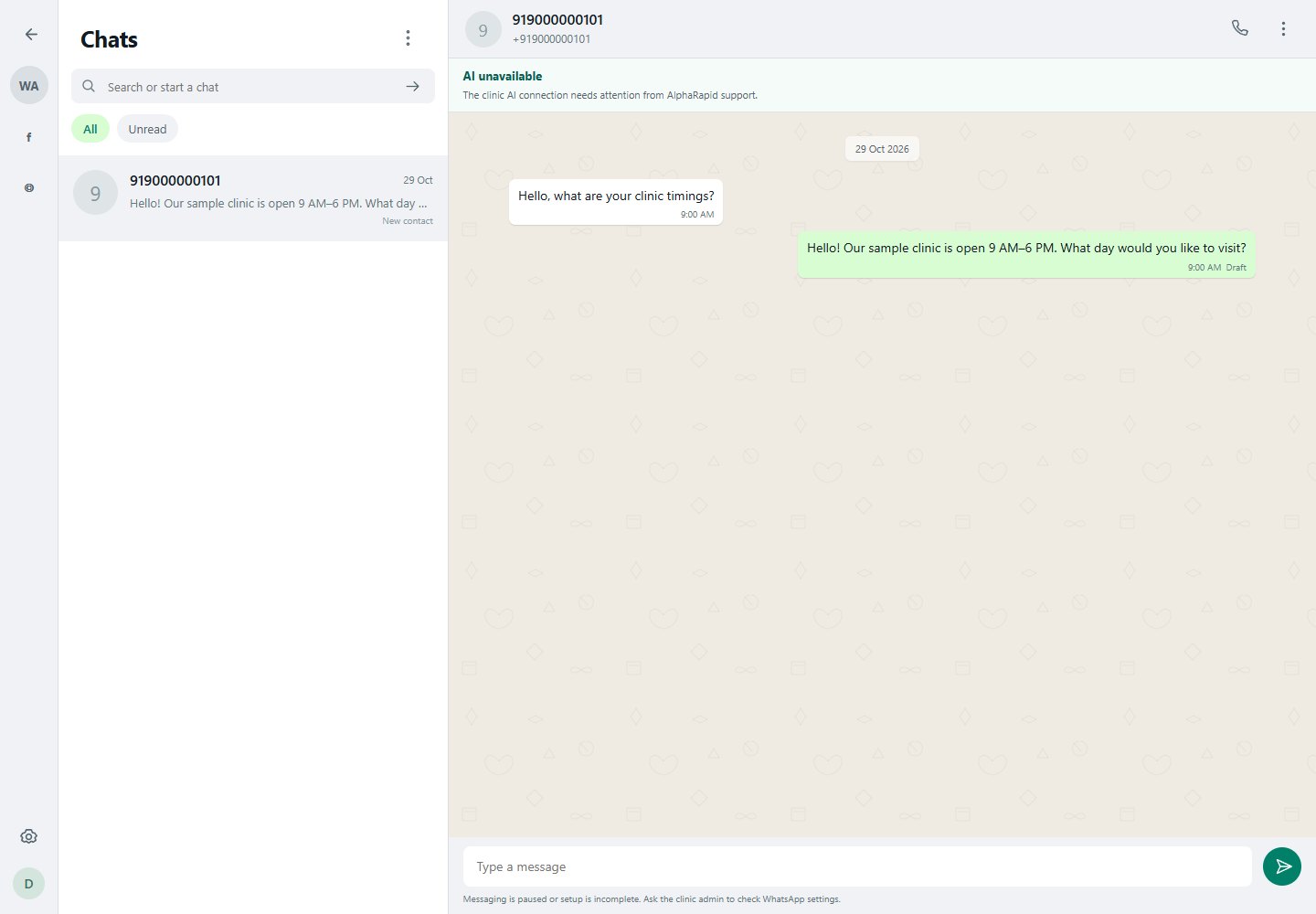
- From another WhatsApp number, send a harmless test such as “Clinic connection test” to the connected clinic number. Use your own test account and avoid patient information.
- Confirm the new message appears in the correct clinic inbox. Reply once from Rapivexa while the customer-service window is open.
- Check the recipient’s phone and the CRM status. Queued is a local queue state; accepted/sent does not guarantee delivery. Delivered/read ticks arrive from Meta status webhooks.
- For an appointment confirmation or reminder outside the reply window, create and submit the intended template, wait for Meta approval, synchronize its status and map the correct template name/language in Rapivexa. A local draft or queued template is not an approved Meta template.
- If a request times out or delivery is uncertain, inspect the recipient and provider status before sending again. Do not create duplicate reminders or appointments by repeatedly retrying.
8. Understand WhatsApp and CRM pricing
There are separate cost layers: the Rapivexa subscription, Meta message charges, any chosen provider’s service fees, optional AI usage and applicable taxes. A clinic consultation fee is unrelated to these software and messaging costs.
Meta prices eligible messages when delivered, using the recipient’s market and message category. Service replies inside the 24-hour customer-service window are free of Meta message charges; eligible utility responses inside that window are also free. Other billable templates follow the current rate card and any applicable volume tiers.
For an India estimate, open Meta’s pricing page, select India, choose the actual billing currency and category, then check the current rate card and WhatsApp Manager payment settings. Rates can change; this guide deliberately does not invent a fixed rupee rate. Marketing, utility and authentication must not be treated as one interchangeable price.
| Cost layer | What to check |
|---|---|
| Rapivexa plan | Use the current Pricing page and your purchased plan; features and limits vary. |
| Meta messages | Recipient market, billing currency, template category, delivered count and volume tier. |
| Direct Cloud API or a partner | If you choose a partner, ask about its subscription, markup and service fees separately. |
| AI receptionist | AI availability, selected provider’s usage charges and your clinic entitlement. |
| Tax and payment method | Check the business invoice/payment account; having a balance does not repair an invalid token. |

10. Quick fixes for the common failures
| What you see | What it means / next check |
|---|---|
| Meta error 190 | Meta rejected authentication. Check the full message and subcode, token validity, app, scope and assigned account. It is not automatically a balance or 24-hour-window problem. |
| 190 with subcode 463 | Check expiry/session validity in Meta’s debugger. Generate a valid authorized replacement if expired; re-saving the expired value does not extend it. |
| Same-looking token works after pasting again | Compare the exact value privately, or the CRM reference. Similar prefixes are not proof of equality. Note the last saved/check/send times. |
| Token valid but message cannot be sent | Check whatsapp_business_messaging, the intended WABA/phone assignment, number registration, account restrictions and the full provider response. |
| No WhatsApp permissions in Generate token | Verify that the selected app has the WhatsApp use case and that the System User has the app role and account access. Do not grant unrelated permissions. |
| Invalid system user name | Meta has rejected that form value. Check the name/form and business restrictions; do not assume the CRM token was deleted or that an Admin role will fix it. Reuse a suitable authorized user if appropriate. |
| Incoming works; outgoing fails | Check the saved access token and send permissions. Receiving webhooks can work even while the sending credential is invalid. |
| Outgoing works; incoming is missing | Check messages subscription, the clinic callback, WABA app subscription and the matching App secret. |
| Callback URL or verify token cannot be validated | Use public HTTPS, the exact clinic URL and the same verify token on both sides. A localhost URL cannot receive Meta’s live callback. |
| Template shows Local draft / Queued | Confirm submission actually reached the intended WABA, then wait for and synchronize Meta’s approval/rejection. |
| AI generates a reply but delivery fails | Check the WhatsApp send failure independently of the AI text-generation result. |
| AI says unavailable or pauses | Review conversation controls, clinic sharing approval, model health and booking configuration; token replacement is not a general AI fix. |
11. Before handing the clinic to staff
If you need help, share the clinic code, app/phone/WABA identifiers when appropriate, the error code/subcode and the time of a harmless test. Keep all secret values private. Support can compare references and check the connection without posting a token publicly.
- The correct clinic number, app, Phone number ID and WABA ID have been checked together.
- A suitable System User token is saved; its validity, expiry and scopes were checked privately.
- The exact clinic webhook is verified and the intended app/account subscription is active.
- A harmless incoming message and a staff reply reached the correct phones.
- Delivery/status updates work; reminders use approved templates with the correct language and mapping.
- AI reception and calling are enabled only if those separate features are configured.
- Screenshots sent to support hide tokens, App secrets, verify tokens and patient information.
Common questions
Do I need a new Meta app when the token expires?
No. Usually you keep the existing app and number, then replace an expired or invalid credential with a valid token authorized for that same connection.
Does saving an empty Access token field delete the token?
In Rapivexa’s connection form, an empty saved secret field retains its value. Use Saved connection and Check saved connection to inspect the actual state.
Is a Never-expiry System User token permanent forever?
No. Never means no scheduled expiry where Meta offers that choice. Revocation, security events and removal of app/account permissions can still invalidate access.
Does changing the AI model renew or replace the WhatsApp token?
No. They are separate credentials. Diagnose the exact provider error and saved-token reference if a problem appears after changing AI settings.
Can a clinic skip Tech Provider registration for its own number?
An own-business direct connection uses the clinic’s Meta app and WhatsApp account. Tech Provider onboarding is the separate route for platforms accessing their clients’ businesses.
Can Rapivexa remove Meta’s 24-hour reply rule?
No. Outside the customer-service window, use the approved messaging route and templates required by Meta.
Official sources and review date
Provider facts reviewed on 29 October 2026. Meta menus, eligibility and rates may change. The four Rapivexa screenshots use an isolated sample clinic. The 18 Meta screenshots show actual screens captured for this guide, cropped and redacted for privacy; no new app, token or permission change was submitted. These screens document navigation and do not certify a live connection. The two diagrams are illustrations.