Personalize your clinic appointment page
Give patients a booking page that belongs to your clinic.
Step by step
- Sign in as clinic Admin and open Clinic insights → Appointment page editor.
- Edit the heading, welcome message, public clinic phone and WhatsApp number. Leave a contact field blank to hide its link.
- Customize the coloured headline ending, section headings, doctor-section introduction, form heading/introduction, public email and opening-hours description. Under Our clinic features, add a title and description for each facility or care feature. Add/remove cards as needed; only publish facilities your clinic actually provides.
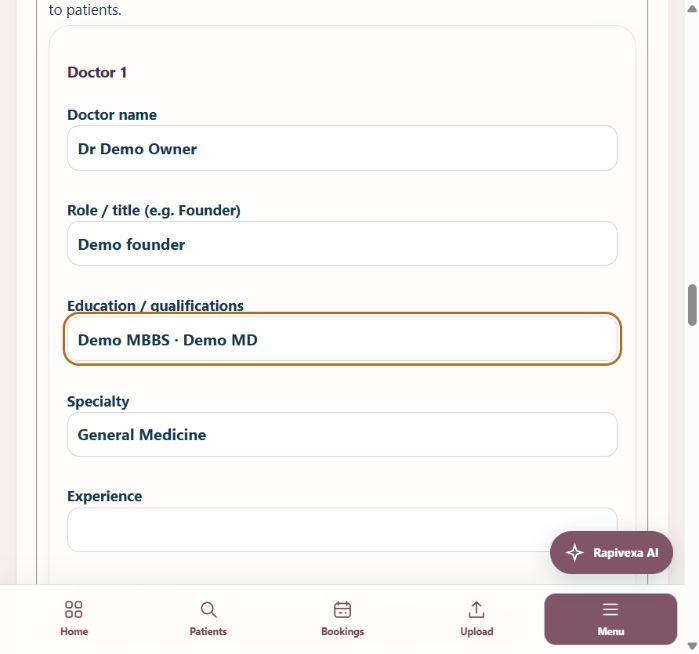
- Enter consultations one per line. Use Add doctor profile for each public doctor, then enter their name, education/qualifications, specialty, experience and introduction. Upload a PNG, JPEG or WebP photo up to 5 MB; it is reduced before uploading. Remove doctor profile or Remove photo hides it after saving. Doctor choices are preferences for reception to review; private staff accounts are not published automatically.
- Choose opening and closing times in IST, and a 15, 30 or 60 minute interval. Patients must choose a preferred date and time. These choices do not represent live doctor availability.
- Use Clinic logo & colours to edit the clinic branding, and Clinic addresses to maintain locations. Under Clinic locations & Google Maps, enter each location’s public phone and Google Maps share link. Blank phone uses the public clinic number; blank Maps link opens an address search. For an inline map, paste the src URL from Google Maps → Share → Embed a map; patients click Show Google Map to load it. Patients choose a location when your clinic has more than one.
- Save appointment page, then Preview appointment page. Share the booking link with patients or use it in your clinic advertisements.
- Reception reviews the incoming website request and confirms the final doctor, date and time. The preferred time is displayed in the request and prefilled for confirmation.
Keep in mind
The page uses your clinic identity with a small Rapivexa credit. It does not collect payment or automatically confirm appointments. Changes are limited to your clinic. Campaign parameters are recorded internally for clinic reports.
Related guides
Appointments & follow-ups
Review website appointment requests
Turn an incoming request into a confirmed clinic booking.
Read guide →Clinic & teamManage locations and branch access
Assign staff only to the locations they need.
Read guide →Still need help?
Send your clinic code and the exact issue. Keep passwords and patient information private.
Request setup help · Free All guides